For most short trips, set up Naver Map, Papago, Google Translate, k.ride, and Emergency Ready before departure. Keep KakaoMap or Google Maps as a map backup, plan a physical transit-card option after arrival, and treat food-delivery apps as optional. An installed icon is not a finished setup: open each critical app, choose its language, search one real destination, and test any account or payment step while you still have stable internet.
This guide was checked on July 23, 2026. App screens, supported languages, store listings, payment methods, and account requirements can change. Use the linked first-party pages and the current screen on your own device before relying on an app for an airport transfer, late-night ride, or emergency.
Use a small stack, not every Korea app
A useful Korea travel stack covers six jobs: data, local place search, translation, a ride fallback, transit payment, and emergency information. The exact brand matters less than proving that each job still works when Wi-Fi disappears or an account rejects your card.
- Data: a working eSIM, SIM, or roaming plan, plus hotel Wi-Fi details stored offline.
- Map: Naver Map as the local search and transit tool, with KakaoMap or Google Maps as a second view.
- Translation: Papago for Korean text and images, plus a downloaded Korean pack in Google Translate.
- Ride: k.ride or another app you can actually sign into and fund, plus an official taxi rank or hotel desk fallback.
- Transit: route planning in the map app and a separate plan to buy or top up a physical transit card.
- Emergency: Emergency Ready configured for your language and region, with 112 and 119 saved outside the app.
Set up Naver Map around a real first-day trip
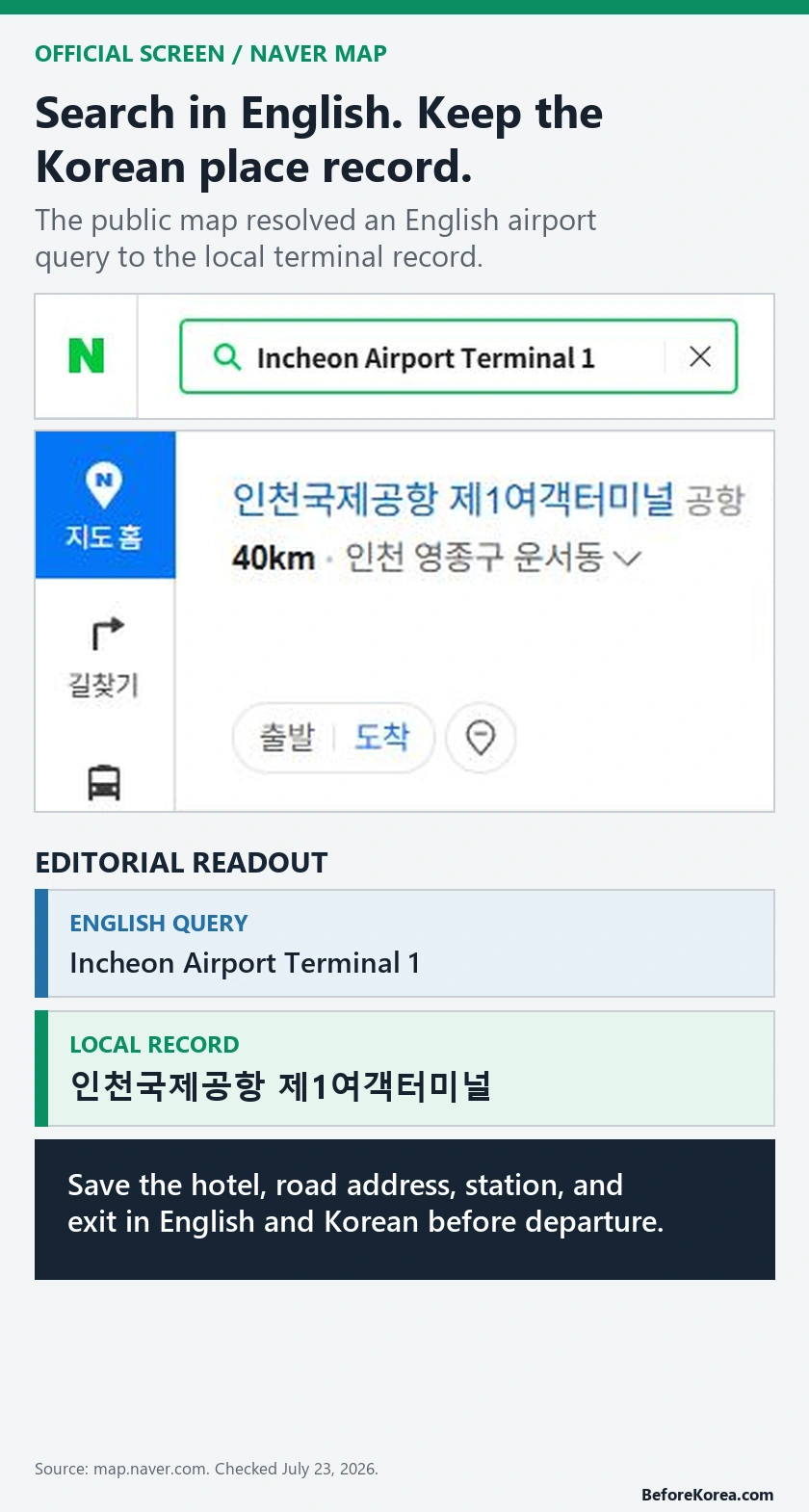
Do not test a map with a famous attraction you already know. Search the exact airport terminal, hotel branch, nearest station, and one first-day destination. On July 23, 2026, the public Naver Map site returned the local record 인천국제공항 제1여객터미널 from an English search for Incheon Airport Terminal 1. That is the useful pattern: begin in English, then keep the Korean place name that identifies the actual local record.
- Open the official Naver Map app and set the language. Naver’s current help page lists Korean, English, Simplified Chinese, and Japanese.
- Search your exact hotel and compare the road address, neighborhood, phone number, and nearby station with the booking confirmation.
- Keep the Korean place name and road address in a note or screenshot. This helps when English spellings differ.
- Check the correct station exit and walking side of the road, not only the station name.
- If you use Naver’s save feature, sign in and confirm the place appears in the saved list. Naver states that saved places require a Naver ID.
Our Naver Map Korea guide covers local place search in more detail. Use the separate Naver Map vs Google Maps comparison when deciding which app should be primary.
Prepare two translation paths
Test image translation and offline translation separately. Papago can translate a saved screenshot while connected, but its offline help excludes image translation. Google Translate supports downloaded-language translation and offline camera translation; follow its Android or iPhone/iPad instructions. Try the exact feature and language pair on your own phone before depending on it. Translation guidance checked September 13, 2026.
- Set Korean and your preferred language in Papago.
- While online, translate one saved Korean address screenshot with Papago’s image tool. Save the result beside the original Korean address.
- While connected to Wi-Fi, select Korean and your preferred language in Google Translate and download the available language packs. Check the downloaded-language instructions; a language without a download option is not available for offline download.
- Turn off both Wi-Fi and mobile data, then type and translate a short Korean phrase. Test camera or saved-image translation separately if you plan to use it offline. If that test fails, keep the original address and the translation you saved while online.
For allergies or medicine, save the original product name and ingredient panel too. A camera translation can help you ask the next question, but it should not be treated as a medical guarantee. See our Papago vs Google Translate guide and Korean food allergy card.
Test a ride app before you need a pickup
k.ride is the clearest first test for many short-term visitors because its official page is aimed at global travelers. It currently advertises an English interface, destination search and driver chat across many languages, estimated fares before calling, and credit, debit, or mobile payment. Those are service claims, not proof that your particular card or pickup will work.
- Create the account and finish email or phone steps before departure.
- Add the card you intend to use and keep a second payment method.
- Search your actual airport terminal and hotel, then inspect the pickup pin without requesting a car.
- Save the hotel’s Korean name, address, and phone number for a street taxi or staffed taxi rank.
If you already use Uber, keep it as a second route rather than assuming one app covers every pickup. Our Kakao T vs Uber Korea guide explains the trade-offs, while the Korea taxi apps guide covers fallback planning.
Keep transit payment separate from route planning
A map app can find a route without paying the fare. Plan the two jobs separately: use Naver Map or KakaoMap to compare stations, exits, transfers, and buses; then have a clear transit-payment plan. A physical T-money card is the simplest broad fallback for many visitors because it does not depend on the phone model, wallet region, or an untested mobile-transit setup.
Do not count an app screenshot as proof that a mobile transit product will work on your device. Check compatibility on the current official page, and keep cash or another method for buying or topping up a physical card after arrival. Our T-money tourist mistakes guide covers purchase, top-up, and refund checks.
Set emergency tools before alerts arrive
Use the current government-linked Emergency Ready download route, not an old app screenshot or an unverified store result. Seoul’s foreign resident portal announced a rebuilt Emergency Ready app on July 20, 2026 and linked the current Android and iPhone listings. After installation, choose your language and region, allow the notifications you want, and open the safety guidance once.
Keep the numbers outside the app: 112 for police and 119 for fire or ambulance. The Korea Tourism Organization’s official emergency FAQ lists those numbers. Put your hotel address, travel-insurance contact, passport copy location, and an emergency contact in the same offline note.
Run a five-minute failure test
Run the test in two parts. With Wi-Fi and mobile data off, open the saved hotel address, pickup-point note and emergency numbers, then test a typed phrase with downloaded languages. Reconnect before testing Papago image translation, live route searches and ride-account or payment screens. An online success does not prove that the same task will work offline.
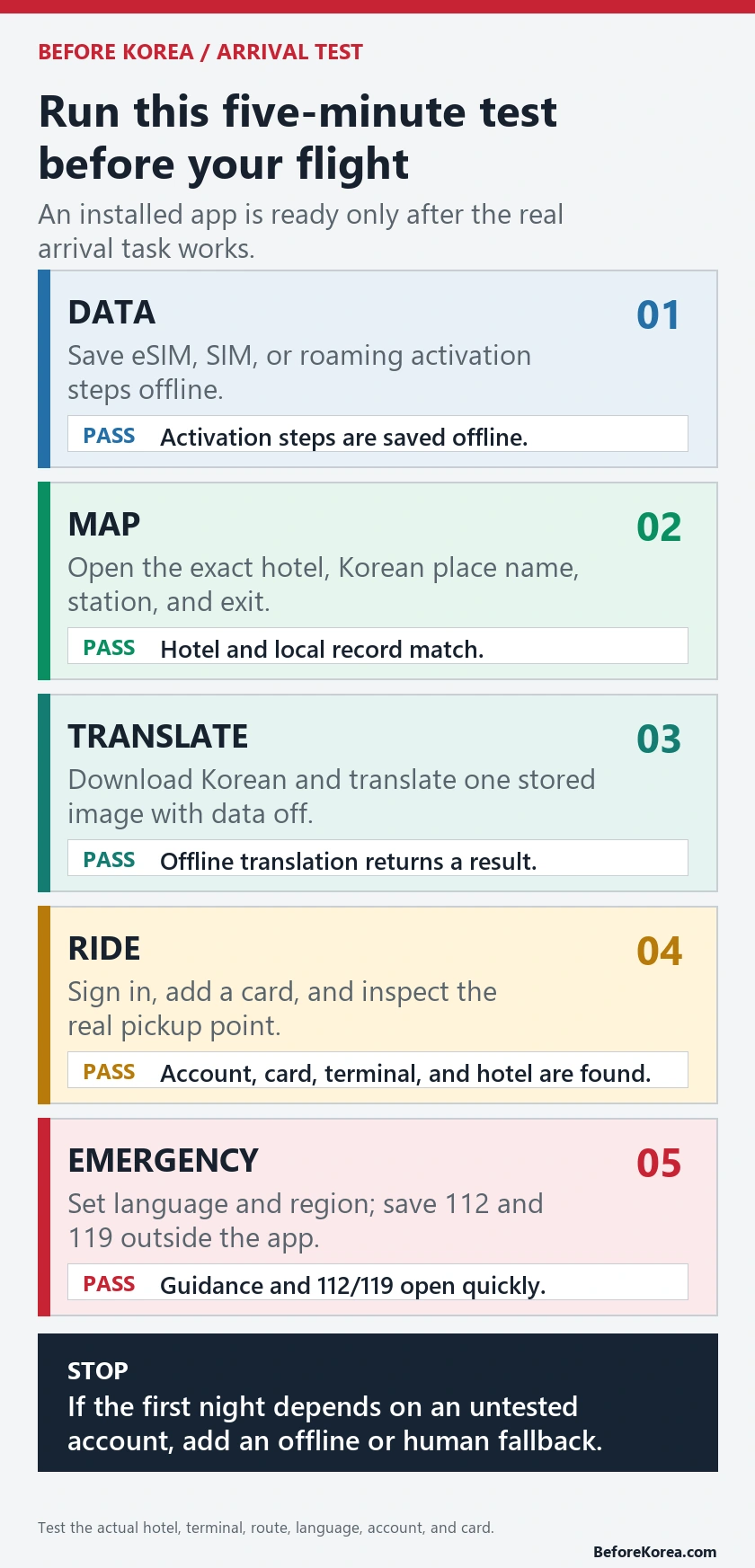
- Data: confirm the eSIM, SIM, or roaming activation instructions are saved offline.
- Map: open the hotel screenshot and identify its Korean name, road address, station, and exit.
- Translate: test a typed phrase with Wi-Fi and mobile data off; test Papago saved-image translation after reconnecting. Keep an original Korean address and its saved translation as the fallback.
- Ride: confirm the account, card, airport terminal, and hotel pickup record while online.
- Emergency: open Emergency Ready, confirm the selected region, and find 112 and 119 in the offline note.
If one critical first-night task depends on an account you have not tested, add a human or offline fallback. That may be an airport taxi rank, hotel desk, printed address, cash reserve, or a walkable meal near the accommodation.
Leave food delivery until after arrival
Food delivery combines the most failure points: local address format, building access, phone contact, payment, app identity, and rider handoff. Do not make it part of the airport-arrival plan. Save one walkable restaurant or convenience store near the hotel and test delivery later with a low-risk order.
Baemin has become more accessible to foreign users, but the exact checkout still decides whether an order works. Read Baemin for foreigners and Can foreigners use Baemin in Korea? before treating it as essential.
Save one offline arrival folder
- Hotel name, road address, and phone number in English and Korean.
- Airport terminal, first route, station exit, and a taxi pickup point.
- eSIM or SIM activation instructions and accommodation Wi-Fi details.
- 112, 119, travel insurance, embassy or consulate, and emergency contact details.
- One payment backup and one first-night meal that does not require an app.
Keep the folder in the phone’s local storage, not only in email or cloud drive. The Korea eSIM vs SIM guide can help you choose the data layer before building the rest of the stack.
Frequently asked questions
Do I need every app before traveling to Korea?
No. Cover the jobs that can block arrival: data, map, translation, ride fallback, transit payment, and emergency information. Add shopping, reservation, and delivery apps only when the trip needs them.
Can I use Naver Map in English?
Yes. Naver’s current help page lists English in the app language settings. Keep the Korean result name too, because it helps identify the correct local record, branch, and address.
Is Google Maps enough for Korea?
Keep it for familiar saved lists and as a second view, but test the same first-day trip in Naver Map or KakaoMap. Use the local result and station-exit detail that best matches the official address.
Should I set up a delivery app before arrival?
Only as an optional test. Do not make a delivery app your only first-night meal plan because checkout, address, contact, and rider handoff can still fail.
Official pages and related Before Korea guides
- Naver Map and official language-setting help
- Naver Map saved-place help
- Papago image-translation help
- Google Translate offline-language help
- k.ride official page
- Seoul foreign resident portal: current Emergency Ready app
- VisitKorea emergency numbers
First-party app, help, and government pages were reviewed July 23, 2026. Before Korea is not affiliated with Naver, Google, Kakao Mobility, or the listed government services.
Set up the event chain, not a folder of unused apps
For a concert or pop-up, set up only the services named by the exact notice, then test the complete chain: receive the alert, open the ticket or reservation, display the live QR if required, find the correct entrance and recover the route with weak data or battery.
| Event task | Set up | Offline fallback |
|---|---|---|
| Official alerts | The artist, organizer or host service named in the notice | Saved notice URL, date and support contact |
| Ticket or reservation | The exact seller or host account and required login method | Order number and evidence allowed by the notice; not an assumed QR screenshot |
| Venue entrance | NAVER Map with Korean venue, hall, floor and exit | Korean address and entrance note |
| Return trip | Official subway information plus a local route app | Final-transfer note and taxi pickup point |
Use Weverse only when the artist or host publishes there. Open the official NAVER Map service page to identify the correct map product. For Seoul rail planning, the city’s public-transportation page documents the route and station features of the Seoul Subway app. The exact event notice decides which ticket or QR service is required.
Installing an app does not confirm account eligibility, ticket validity, offline QR acceptance or entry. Test the final action while you still have stable internet and official support available.
Last checked: August 7, 2026. Recheck required apps whenever the organizer revises the notice.